

If you’ve ever worked with large datasets, you already know how frustrating duplicate values can be. Whether it’s customer lists, sales records, or inventory sheets, duplicates can quietly ruin your analysis. That’s why learning how to remove duplicates in Excel is a must-have skill for anyone working with data.
In this guide, we’ll walk through everything from basic tools to advanced techniques, including how to remove duplicates in Excel column, how to remove duplicates in Excel but keep one, and even how to handle duplicates in pivot tables and formulas. By the end, you’ll be able to clean your data like a pro without losing important information.
Why Removing Duplicates in Excel Matters
Duplicate data isn’t just messy—it can lead to wrong decisions. Imagine double-counting sales or sending the same email twice to a customer list. That’s where knowing how to remove duplicates in Excel sheet becomes essential.
Common problems caused by duplicates:
- Inflated reports and inaccurate summaries
- Confusion in customer databases
- Errors in financial analysis
- Wasted time sorting repeated data
Excel provides several easy ways to fix this, and we’ll explore them step by step.
How to Remove Duplicates in Excel Using Built-in Tool
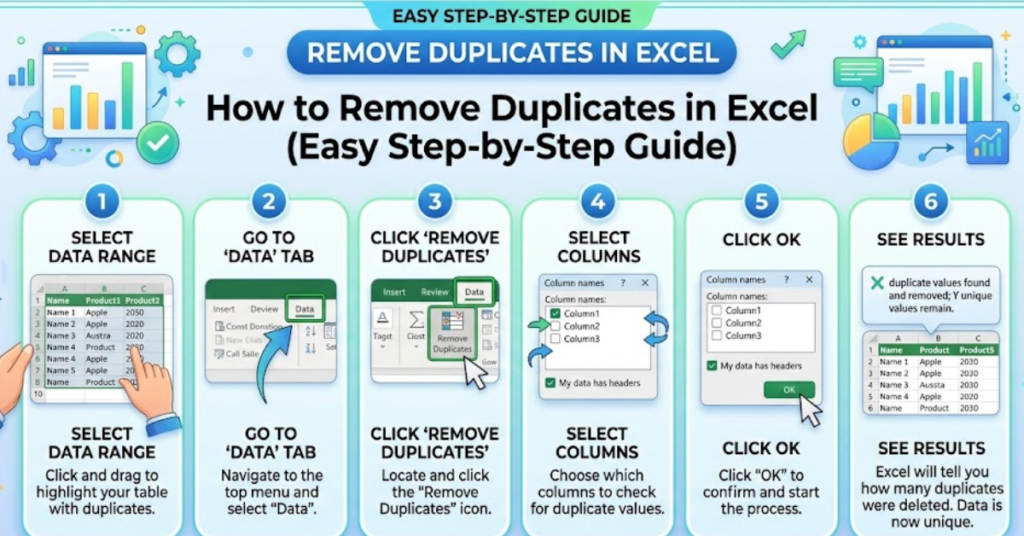
The simplest method is Excel’s built-in “Remove Duplicates” feature.
Steps:
- Select your data range or table
- Go to Data tab
- Click Remove Duplicates
- Choose columns to check for duplicates
- Click OK
This method is perfect for beginners who want a quick solution for how to remove duplicates in Excel table or sheet.
How to Remove Duplicates in Excel Column Only
Sometimes you only need to clean one column.
Example:
If you have a list of email addresses:
- Select the column
- Go to Data → Remove Duplicates
- Make sure only that column is selected
This is the fastest way for how to remove duplicates in Excel column without affecting other data.
How to Remove Duplicates in Excel but Keep One Value
One of the most searched queries is how to remove duplicates in Excel but keep one.
Here’s the trick:
Excel automatically keeps the first occurrence and removes the rest.
Tip:
Before removing duplicates, sort your data so the most important record appears first. That way, Excel keeps the correct entry.
How to Remove Duplicates Based on One Column
If your dataset has multiple columns (like Name, Email, Phone), you may want to remove duplicates based on just one field.
Steps:
- Select the entire dataset
- Click Data → Remove Duplicates
- Uncheck all columns except the one you want (e.g., Email)
- Click OK
This method is widely used for how to remove duplicates in Excel based on one column.
How to Remove Duplicates in Excel Without Shifting Cells
If you don’t want your layout to move:
Use Advanced Filter:
- Select your range
- Go to Data → Advanced Filter
- Choose “Copy to another location”
- Check Unique records only
- Select destination range
This keeps your original data safe and is useful when learning how to remove duplicates in Excel without shifting cells.
How to Remove Duplicates in Excel Shortcut
Excel doesn’t have a single dedicated shortcut, but you can use:
Quick Access Method:
- Press Alt + A + M
This instantly opens the Remove Duplicates window, saving time when cleaning large datasets.
How to Remove Duplicates in Excel Formula
If you prefer formulas instead of tools, Excel offers powerful options.
1. UNIQUE Function (Excel 365/2021)
This automatically extracts unique values.
2. COUNTIF Method (Older Excel)
This helps identify duplicates while keeping the first entry.
Formulas are great for dynamic datasets where values keep changing.
How to Remove Duplicates in Excel Pivot Table
Pivot tables are often used for summarizing data, but duplicates can still appear in source data.
Solution:
- Click inside Pivot Table
- Go to PivotTable Analyze → Refresh Data
- Ensure your source data is cleaned using Remove Duplicates first
Pivot tables don’t directly remove duplicates, but they summarize unique values effectively.
Best Practices for Removing Duplicates in Excel
To avoid mistakes:
- Always back up your file first
- Check which columns define “duplicate”
- Sort data before cleaning
- Use formulas for dynamic data
- Double-check results after removal
Common Mistakes to Avoid
Many users accidentally:
- Remove important data by selecting wrong columns
- Forget that Excel keeps only the first entry
- Apply duplicate removal without backup
- Confuse filtering with deletion
Being careful saves you from permanent data loss.
FAQs – How to Remove Duplicates in Excel
1. Can I undo remove duplicates in Excel?
Yes, press Ctrl + Z immediately after applying the tool.
2. Does Excel delete duplicates permanently?
Yes, unless you undo or restore a backup file.
3. How to highlight duplicates instead of removing them?
Use Conditional Formatting → Highlight Duplicate Values.
4. Can I remove duplicates from multiple columns?
Yes, select all relevant columns in the Remove Duplicates tool.
5. What is the fastest way to remove duplicates?
Using Alt + A + M is the quickest shortcut method.
Conclusion
Learning how to remove duplicates in Excel is one of the most useful skills for anyone working with data. Whether you’re cleaning a simple list or managing a complex spreadsheet, Excel offers multiple ways to handle duplicates—tools, formulas, shortcuts, and filters.
From how to remove duplicates in Excel column to how to remove duplicates in Excel pivot table, each method serves a different purpose. The key is choosing the right one based on your data structure.
If you regularly work with spreadsheets, mastering these techniques will save you time, improve accuracy, and make your data far more reliable.